

Use the W&B OpenAI API integration to log requests, responses, token counts, and model metadata for all OpenAI models, including fine-tuned models. This guide is for developers who call the OpenAI API and want visibility into their prompts, completions, and usage without adding manual logging code. By logging your API inputs and outputs, you can quickly evaluate the performance of different prompts, compare different model settings (such as temperature), and track other usage metrics such as token usage.Documentation Index
Fetch the complete documentation index at: https://wb-21fd5541-style-guide-models-integrations-20260527-015516.mintlify.app/llms.txt
Use this file to discover all available pages before exploring further.
See the OpenAI fine-tuning integration to learn how to use W&B to track your fine-tuning experiments, models, and datasets and share your results with your colleagues.
Install OpenAI Python API library
The W&B autolog integration works with OpenAI version 0.28.1 and earlier, so you must install a compatible version before enabling autologging. To install OpenAI Python API version 0.28.1:Use the OpenAI Python API
The following steps walk you through enabling autologging, calling the OpenAI API, and viewing the resulting traces in W&B.Import and initialize autolog
First, importautolog from wandb.integration.openai and initialize it. This sets up the W&B run that captures every subsequent OpenAI API call.
wandb.init() accepts to autolog. This includes a project name, team name, entity, and more. For more information, see the wandb.init() API reference.
Call the OpenAI API
With autolog enabled, W&B logs each call you make to the OpenAI API automatically. You don’t need to add any logging code to your existing API calls.View your OpenAI API inputs and responses
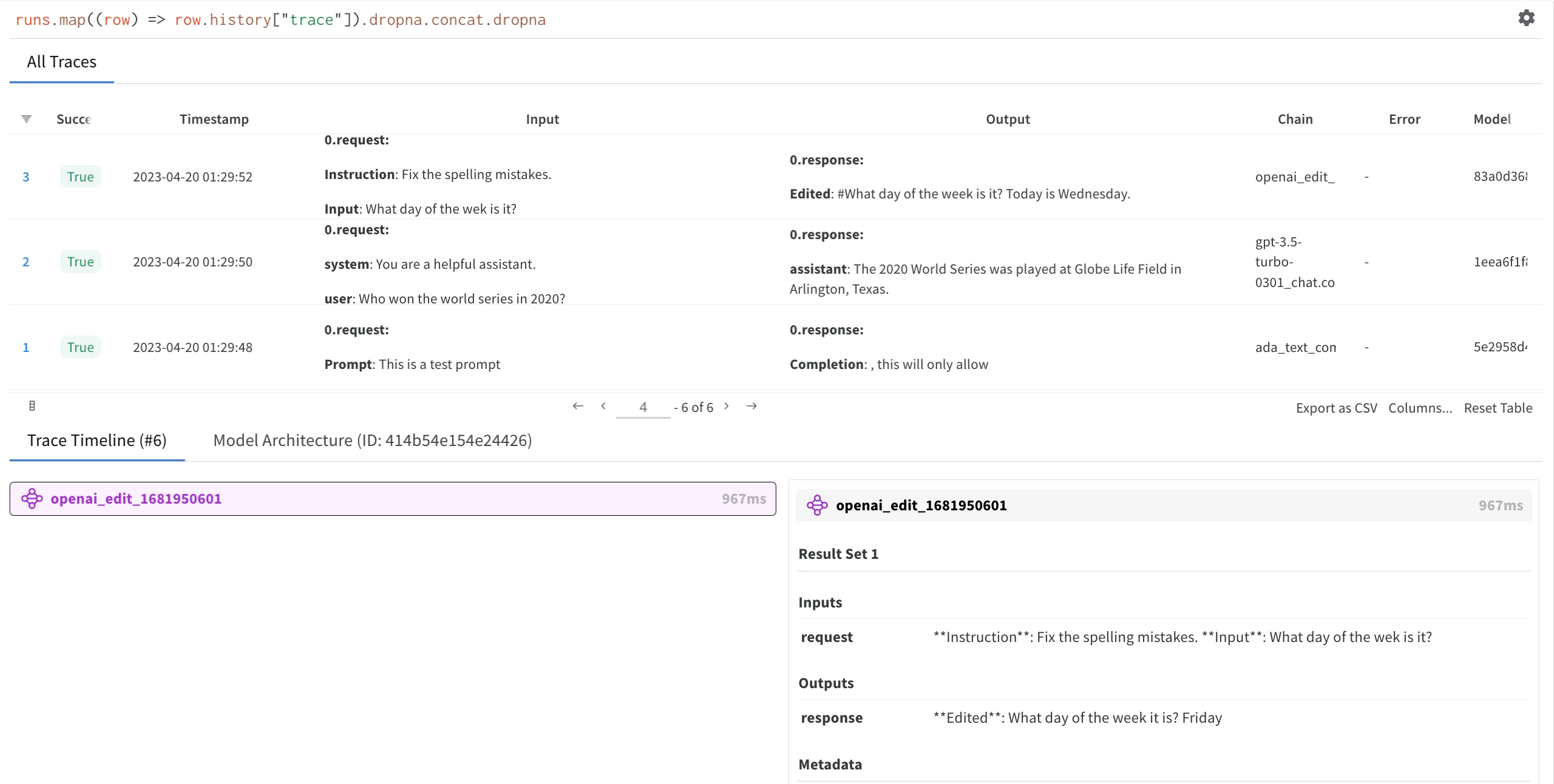
After making one or more API calls, you can inspect the captured data in the W&B App. Click the W&B run link generated byautolog. This redirects you to your project workspace in the W&B App.
Select a run you created to view the trace table, trace timeline, and the model architecture of the OpenAI LLM used.
Turn off autolog
Calldisable() to close all W&B processes when you’re finished using the OpenAI API. This ensures that W&B flushes any pending data and doesn’t capture further API calls unintentionally.