

The Hugging Face Transformers library makes NLP models like BERT and training techniques like mixed precision and gradient checkpointing easy to use. The W&B integration adds experiment tracking and model versioning to centralized dashboards. This guide shows you how to connect the Hugging FaceDocumentation Index
Fetch the complete documentation index at: https://wb-21fd5541-style-guide-models-integrations-20260527-015516.mintlify.app/llms.txt
Use this file to discover all available pages before exploring further.
Trainer to W&B. Your training runs then automatically log metrics, model checkpoints, and evaluation outputs to a centralized dashboard. By the end, you’ll be able to compare runs, save and reload model checkpoints from W&B Artifacts, and customize logging for your own workflows. This guide assumes you’re already familiar with training models using the Hugging Face Transformers Trainer.
Quick start
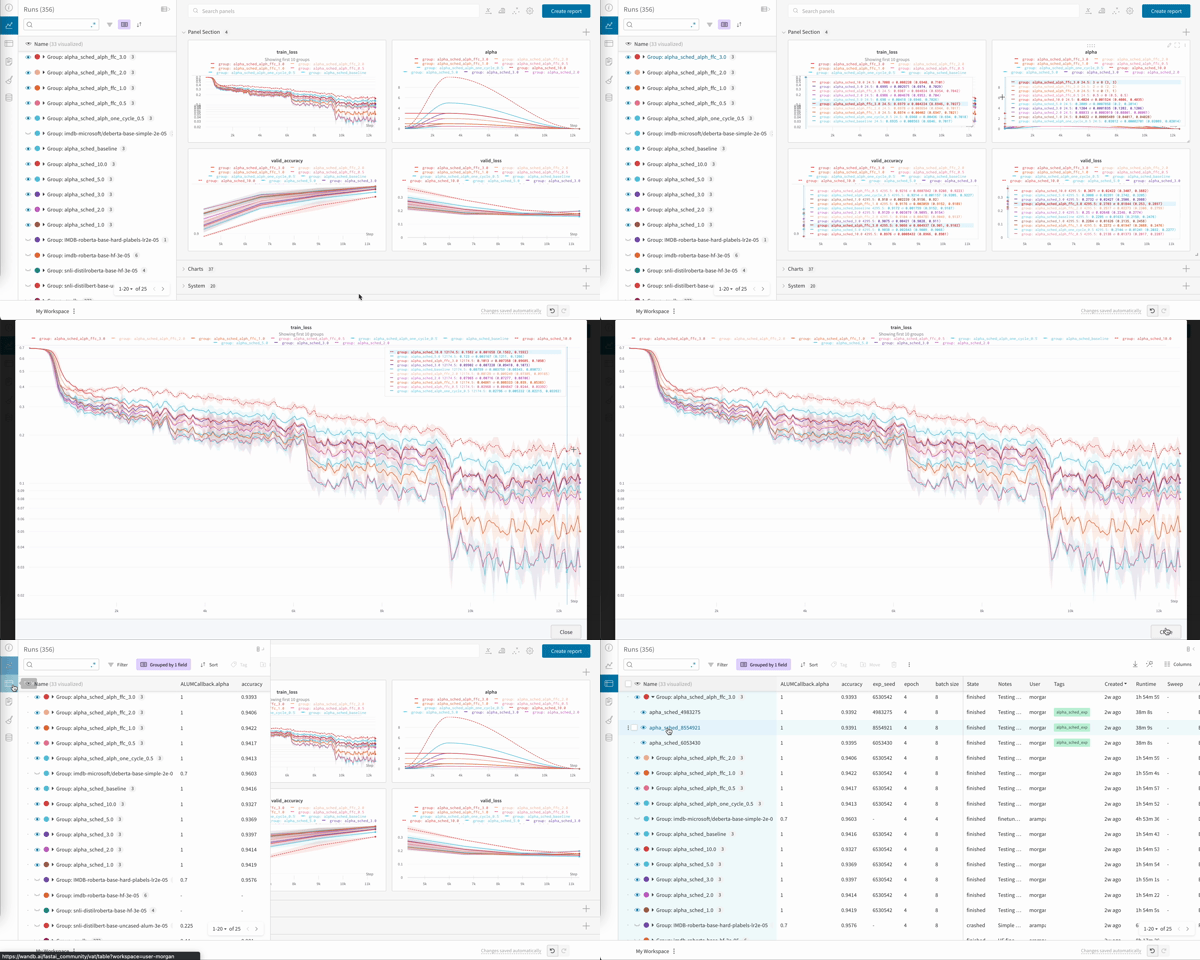
If you’d rather dive straight into working code, check out this Google Colab.
Get started: track experiments
This section walks you through authenticating to W&B, installing the client library, naming your project, and turning on logging in yourTrainer so that your first training run shows up in the W&B Dashboard.
Sign up and create an API key
An API key authenticates your machine to W&B. You can generate an API key from your user profile.For a more streamlined approach, create an API key by going directly to User Settings. Copy the newly created API key immediately and save it in a secure location such as a password manager.
- Click your user profile icon in the upper right corner.
- Select User Settings, then scroll to the API Keys section.
Install the wandb library and log in
To install the wandb library locally and log in:
- Command Line
- Python
- Python notebook
-
Set the
WANDB_API_KEYenvironment variable to your API key. -
Install the
wandblibrary and log in.
Name the project
A W&B Project stores all of the charts, data, and models logged from related runs. Naming your project helps you organize your work and keep all the information about a single project in one place. To add a run to a project, set theWANDB_PROJECT environment variable to the name of your project. The WandbCallback picks up this project name environment variable and uses it when setting up your run.
- Command Line
- Python
- Python notebook
Make sure you set the project name before you initialize the
Trainer.huggingface.
Log your training runs to W&B
When you define yourTrainer training arguments, either inside your code or from the command line, set report_to to "wandb" to enable logging with W&B. Without this setting, the Trainer doesn’t send any data to W&B.
The logging_steps argument in TrainingArguments controls how often training metrics are pushed to W&B during training. You can also give a name to the training run in W&B using the run_name argument.
That’s it. Your models now log losses, evaluation metrics, model topology, and gradients to W&B while they train.
- Command Line
- Python
Using TensorFlow? Swap the PyTorch
Trainer for the TensorFlow TFTrainer.Turn on model checkpointing
In addition to logging metrics, you can save the trained model weights themselves to W&B so they can be versioned, downloaded, and shared across your team. With Artifacts, you can store up to 100 GB of models and datasets for free and then use the W&B Registry. With Registry, you can register models to explore and evaluate them, prepare them for staging, or deploy them in your production environment. To log your Hugging Face model checkpoints to Artifacts, set theWANDB_LOG_MODEL environment variable to one of:
checkpoint: Upload a checkpoint everyargs.save_stepsfrom theTrainingArguments.end: Upload the model at the end of training, ifload_best_model_at_endis also set.false: Don’t upload the model.
- Command Line
- Python
- Python notebook
Trainer you initialize from now on uploads models to your W&B project. The model checkpoints you log are viewable through the Artifacts UI, and include the full model lineage. See an example model checkpoint in the Artifacts UI.
By default, your model saves to W&B Artifacts as
model-{run_id} when WANDB_LOG_MODEL is set to end or checkpoint-{run_id} when WANDB_LOG_MODEL is set to checkpoint.
However, if you pass a run_name in your TrainingArguments, the model saves as model-{run_name} or checkpoint-{run_name}.W&B Registry
After you log your checkpoints to Artifacts, you can register your best model checkpoints and centralize them across your team with Registry. With Registry, you can organize your best models by task, manage the lifecycles of models, track and audit the entire ML lifecycle, and automate downstream actions. To link a model Artifact, refer to Registry.Visualize evaluation outputs during training
Visualizing your model outputs during training or evaluation is often essential to understand how your model trains. Inspecting concrete predictions alongside loss curves helps you spot quality issues that aggregate metrics can hide. Using the callbacks system in the Transformers Trainer, you can log more helpful data to W&B Tables. This includes your models’ text generation outputs or other predictions. For a full guide on how to log evaluation outputs while training to a W&B Table like the following, see Log and view evaluation samples during training.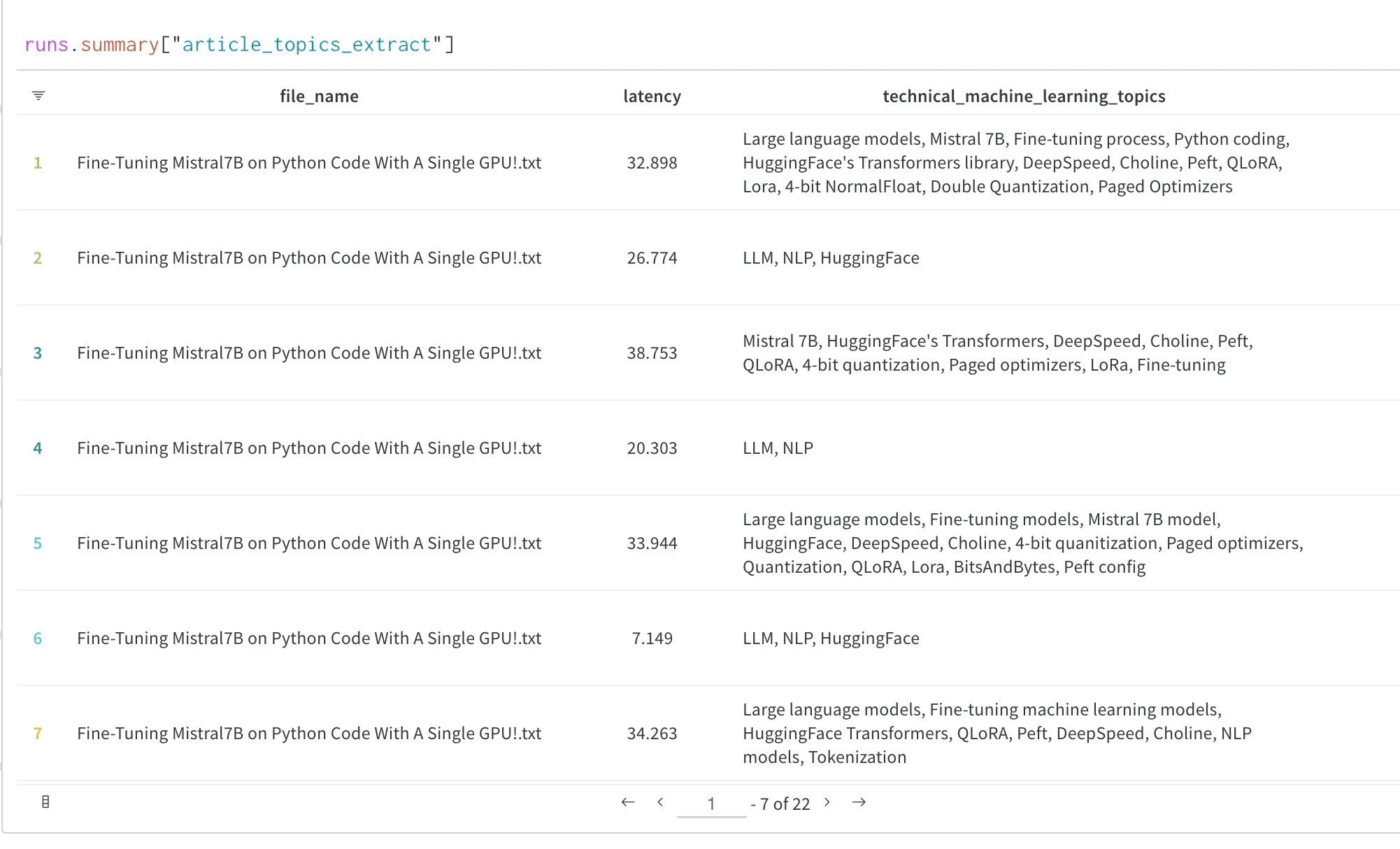
Finish your W&B run (notebook only)
If your training is encapsulated in a Python script, the W&B run ends when your script finishes. If you’re using a Jupyter or Google Colab notebook, callrun.finish() to signal that training is complete.
Visualize your results
After you log your training results, you can explore them in the W&B Dashboard. You can compare runs, zoom in on findings, and explore your data with interactive visualizations. At this point you have a working integration: yourTrainer logs metrics to a named project, optionally saves checkpoints to Artifacts, and surfaces evaluation outputs in the W&B Dashboard.
Advanced features and FAQs
The following sections cover common follow-up tasks, such as saving the best model, resuming training from a checkpoint, customizing logging callbacks, and configuring W&B behavior through environment variables.Save the best model
If you passTrainingArguments with load_best_model_at_end=True to your Trainer, W&B saves the best performing model checkpoint to Artifacts.
If you save your model checkpoints as Artifacts, you can promote them to the Registry. In Registry, you can:
- Organize your best model versions by ML task.
- Centralize models and share them with your team.
- Stage models for production or bookmark them for further evaluation.
- Trigger downstream CI/CD processes.
Load a saved model
If you saved your model to W&B Artifacts withWANDB_LOG_MODEL, you can download your model weights for more training or to run inference. Load them back into the same Hugging Face architecture that you used before.
Resume training from a checkpoint
If you setWANDB_LOG_MODEL='checkpoint', you can resume training by using the model_dir as the model_name_or_path argument in your TrainingArguments and passing resume_from_checkpoint=True to Trainer.
Log and view evaluation samples during training
TheWandbCallback in the Transformers library handles logging to W&B through the Transformers Trainer. You can customize this callback to log model predictions, confusion matrices, or other custom data. To do so, subclass WandbCallback and add functionality that uses additional methods from the Trainer class.
The following is the general pattern to add this new callback to the Hugging Face Trainer, followed by a code-complete example to log evaluation outputs to a W&B Table:
View evaluation samples during training
The following section shows how to customize theWandbCallback to run model predictions and log evaluation samples to a W&B Table during training. This runs every eval_steps using the on_evaluate method of the Trainer callback.
The decode_predictions function decodes the predictions and labels from the model output using the tokenizer.
Then, the code creates a pandas DataFrame from the predictions and labels and adds an epoch column to the DataFrame.
Finally, the code creates a wandb.Table from the DataFrame and logs it to W&B. You can control the frequency of logging by logging the predictions every freq epochs.
Unlike the regular
WandbCallback, this custom callback needs to be added to the trainer after the Trainer is instantiated, not during initialization of the Trainer. This is because the Trainer instance is passed to the callback during initialization.Additional W&B settings
You can further configure what is logged withTrainer by setting environment variables. For a full list of W&B environment variables, see the environment variables reference.
| Environment Variable | Usage |
|---|---|
WANDB_PROJECT | Give your project a name (huggingface by default) |
WANDB_LOG_MODEL | Log the model checkpoint as a W&B Artifact (
|
WANDB_WATCH | Set whether to log your model’s gradients, parameters, or neither.
|
WANDB_DISABLED | Set to true to turn off logging entirely (false by default) |
WANDB_QUIET | Set to true to limit statements logged to standard output to critical statements only (false by default) |
WANDB_SILENT | Set to true to silence the output printed by wandb (false by default) |
- Command Line
- Notebook
Customize wandb.init()
The WandbCallback that Trainer uses calls wandb.init() under the hood when Trainer is initialized. Alternatively, you can set up your runs manually by calling wandb.init() before the Trainer is initialized. This gives you full control over your W&B run configuration.
The following is an example of what you might pass to init. For wandb.init() details, see the wandb.init() reference.